Tap app icon: a cream coin dropping into a teal pocket
Expense tracker · iPhone, iPad & Mac

Two taps.
Expense recorded.

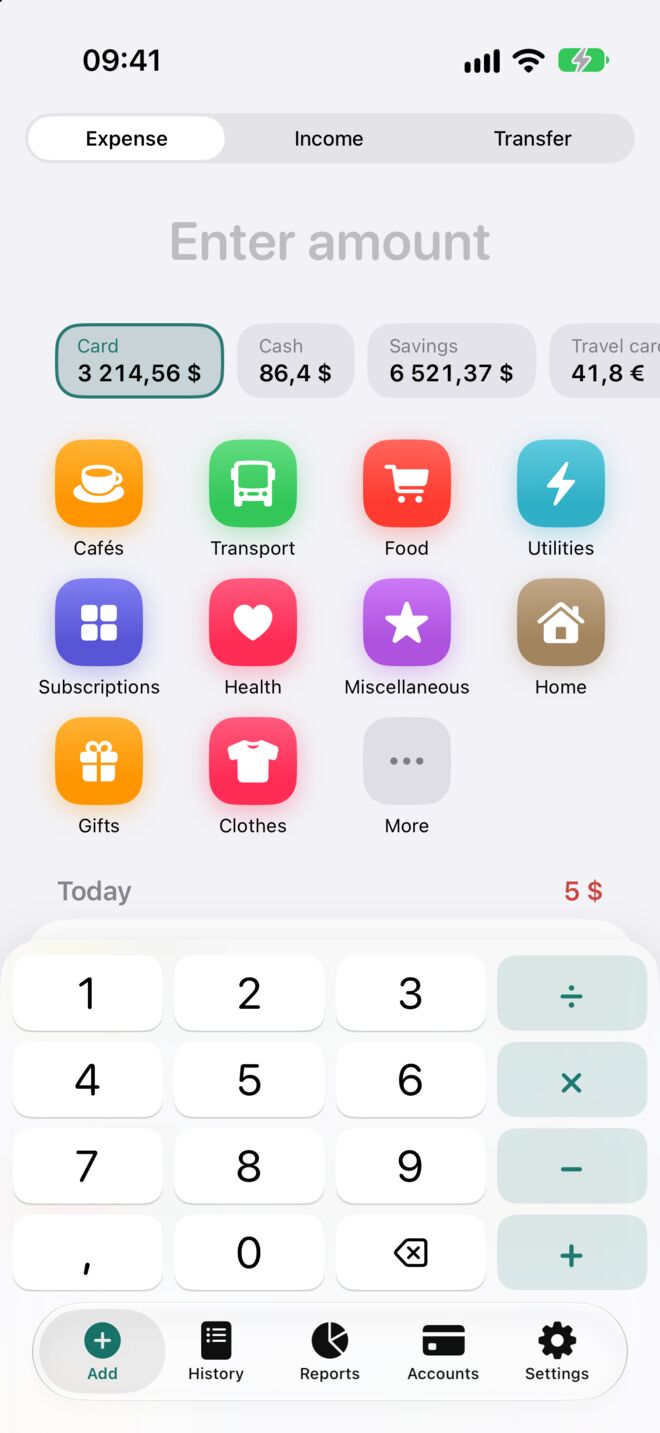
Type the amount on the built-in keypad, tap a category — done. No forms, no account, no ads.

  • Free
  • No ads
  • No account
  • iCloud sync
Tap’s main screen: accounts, a grid of categories and the keypad
01 · Apple Pay automation

Pay with Apple Pay.
Tap writes it down.

Set up one automation in the Shortcuts app, once. From then on every Apple Pay payment lands in Tap with its amount, merchant and card — Tap only asks for the category, and the one you chose for that merchant last time comes first.

  1. In Tap, open Settings → Apple Pay logging and tap Add Automation.
  2. Pay with Apple Pay as usual — in a shop, a café or online.
  3. Pick the category. That’s the whole job.
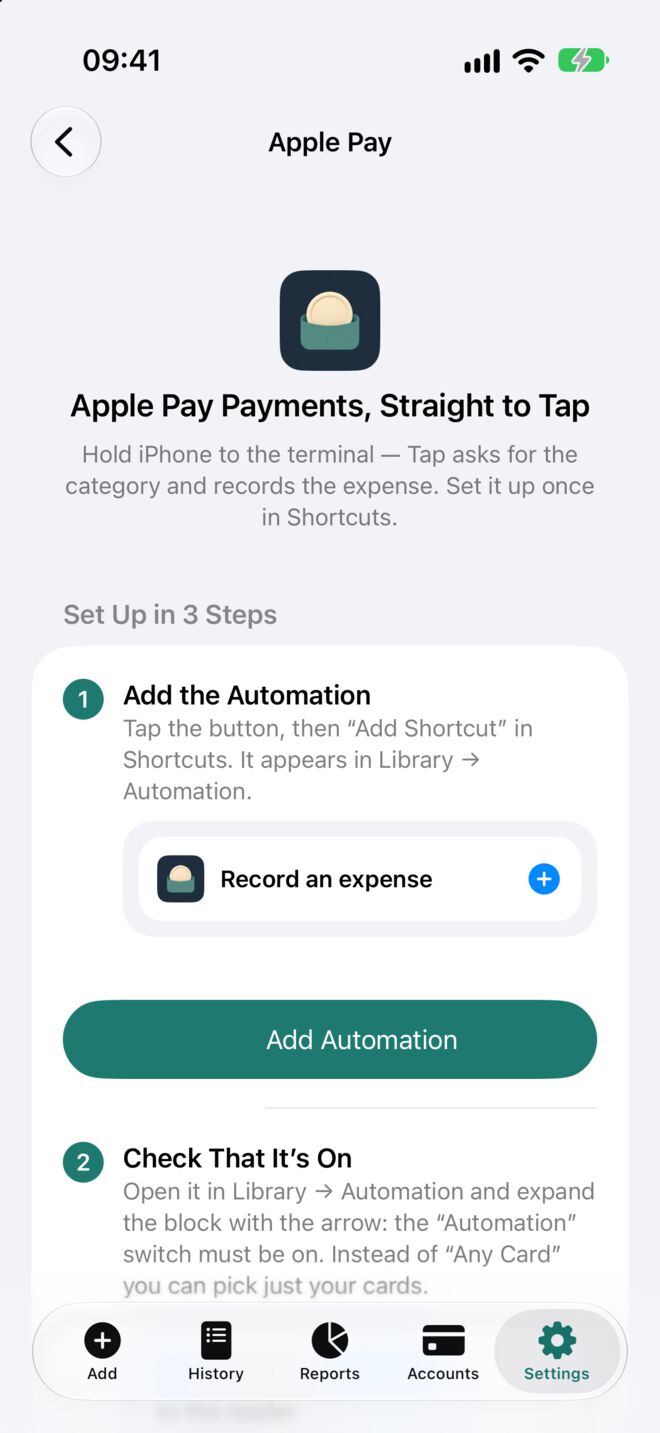
Apple Pay setup screen in Tap: add the automation in three steps
02 · History

Every operation,
one search away.

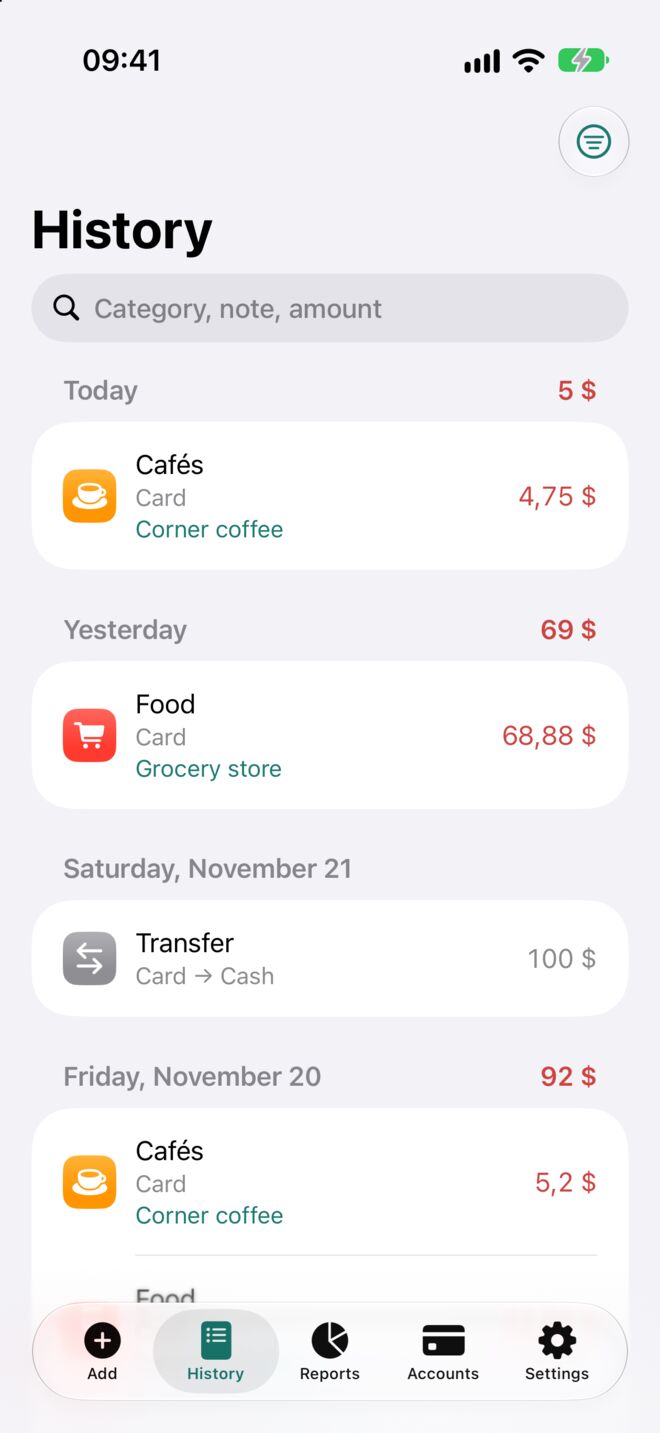
Search by category, note or amount and narrow it down with filters. Days come with their totals, and repeating or deleting an entry is a swipe — with undo.

History screen with search and operations grouped by day
03 · Reports

See where
the money goes.

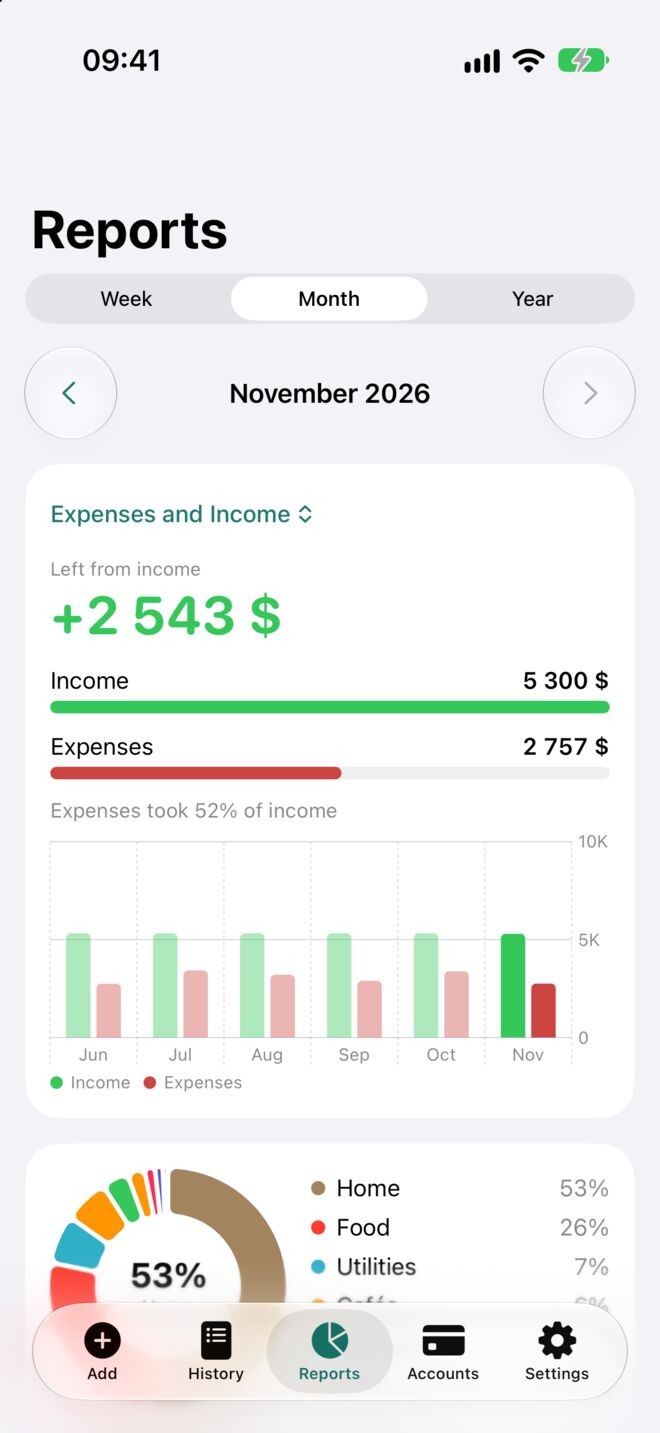
Switch between week, month and year to see what is left from your income, how expenses compare with income over the last months and which categories take the most.

Reports screen: income and expenses for the month, a chart by month and a breakdown by category
04 · Accounts & currencies

All your money,
in any currency.

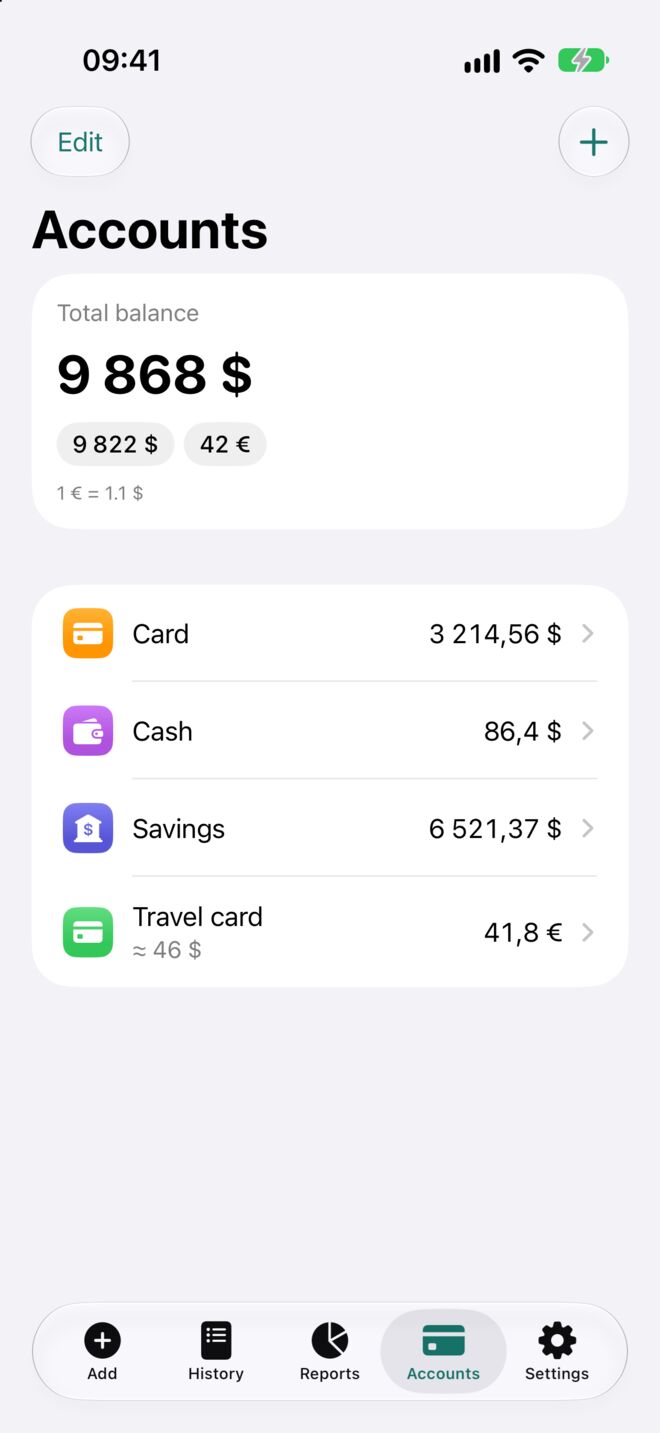
Cash, cards and savings, each in its own currency. The total balance is shown in your main currency at up-to-date exchange rates, and transfers can go between currencies.

Accounts screen: total balance and accounts in dollars and euros
Also inside
  • Expenses, income & transfers
  • CSV import & export
  • Face ID lock
  • Daily backups
  • iPhone, iPad & Mac
  • English & Russian
Sync & privacy

Your money stays yours.

Tap has no servers of its own and no accounts. Your records live on your devices and in your own iCloud.

  • Sync between your iPhone, iPad and Mac through your private iCloud database.
  • Daily backups on the device and in iCloud Drive.
  • Face ID or Touch ID lock, checked by the system.
  • No sign-up, no ads, no analytics, no tracking. Only anonymous crash reports.

Read the privacy policy →

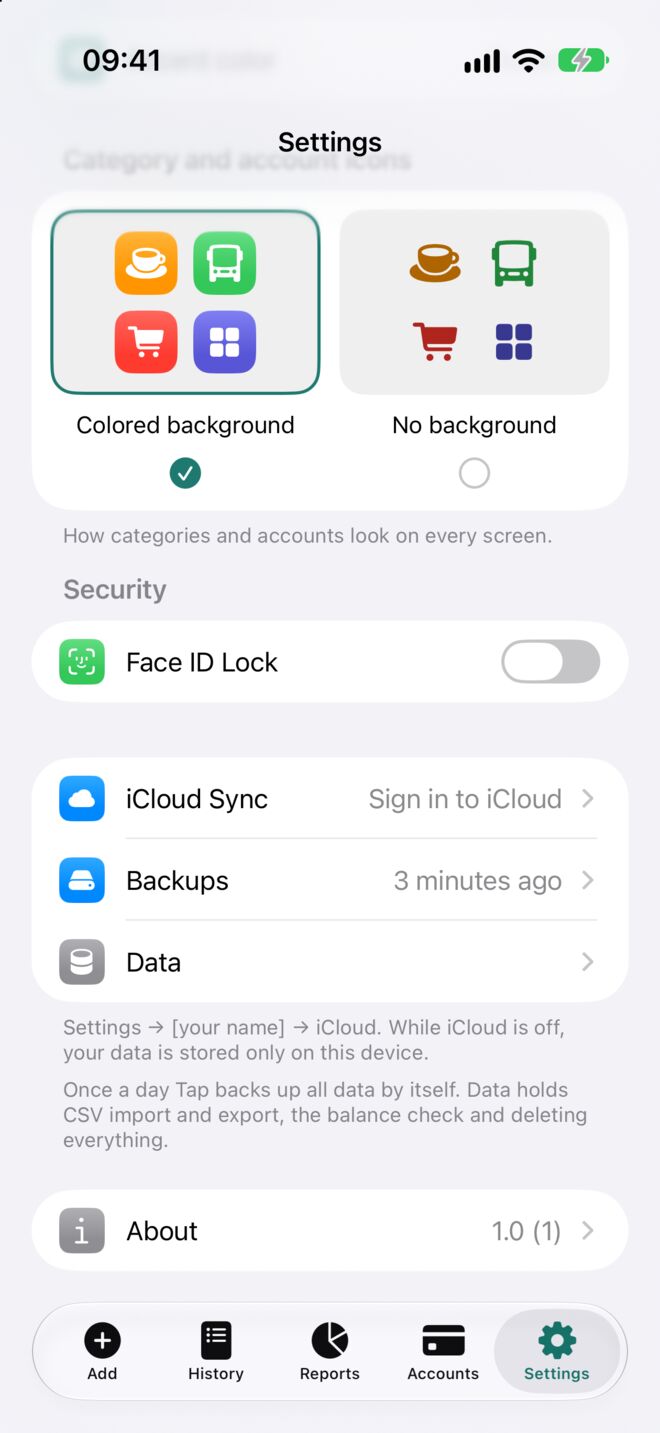
Settings: Face ID lock, iCloud sync, backups and data
Questions

Good to know

Is Tap free?

Yes. Tap is free, shows no ads and needs no account or registration.

Where is my data stored?

On your devices and in your own iCloud: the private CloudKit database for sync and iCloud Drive for backups. The developer has no access to it. Details are in the privacy policy.

How does Apple Pay recording work?

Once, you add an automation in the Shortcuts app (Tap opens it for you from Settings → Apple Pay logging): the Wallet “Transaction” trigger runs Tap’s action with the amount, merchant and card. After that, each Apple Pay payment is recorded and Tap only asks you for the category. The transaction details are processed on your device.

Which devices does it run on?

iPhone, iPad and Macs with Apple silicon (as the iPad app). Your records sync between them through iCloud.

Can I use several currencies?

Yes. Each account has its own currency, transfers can go between currencies, and exchange rates are updated automatically so the total balance is shown in your main currency.

Can I bring my data in or take it out?

Yes: import and export CSV at any time. Tap also makes daily backups on the device and in iCloud Drive.

Which languages does Tap speak?

English and Russian.

Two taps. Every time.

Free for iPhone, iPad and Mac.